VLC Media Player is more than just a media player. It’s a versatile tool for video editing. Many users are unaware of its hidden features.
One such feature is the ability to trim videos. This can be done using VLC’s Record function. It’s a simple yet effective method.
Trimming videos with VLC is straightforward. You don’t need extra software. This makes it a convenient choice for quick edits.
VLC is available on multiple platforms. Whether you’re on Windows, macOS, or Linux, VLC has you covered. It’s accessible to everyone.
The process is non-destructive. Your original video remains unchanged. This is ideal for preserving your content.
VLC supports many video formats. This versatility is a major advantage. You can work with almost any video file.
The interface is user-friendly. Even beginners can navigate it with ease. This makes video trimming accessible to all.
In this guide, we’ll explore how to trim videos using VLC. Follow along for a step-by-step walkthrough.
What Is VLC Media Player and Why Use It for Trimming Videos?
VLC Media Player is a free, open-source multimedia player. It’s highly regarded for its wide range of functionalities. Beyond playing media, it offers several editing tools.
One standout feature is its capability to trim videos. Unlike traditional video editors, VLC doesn’t require encoding. This preserves the original quality of the footage.
Several reasons make VLC a go-to choice for trimming videos:
- It’s free and open-source.
- Easy to use with an intuitive interface.
- Supports a wide array of video formats.
- Available on multiple operating systems.
- Offers reliable and consistent performance.
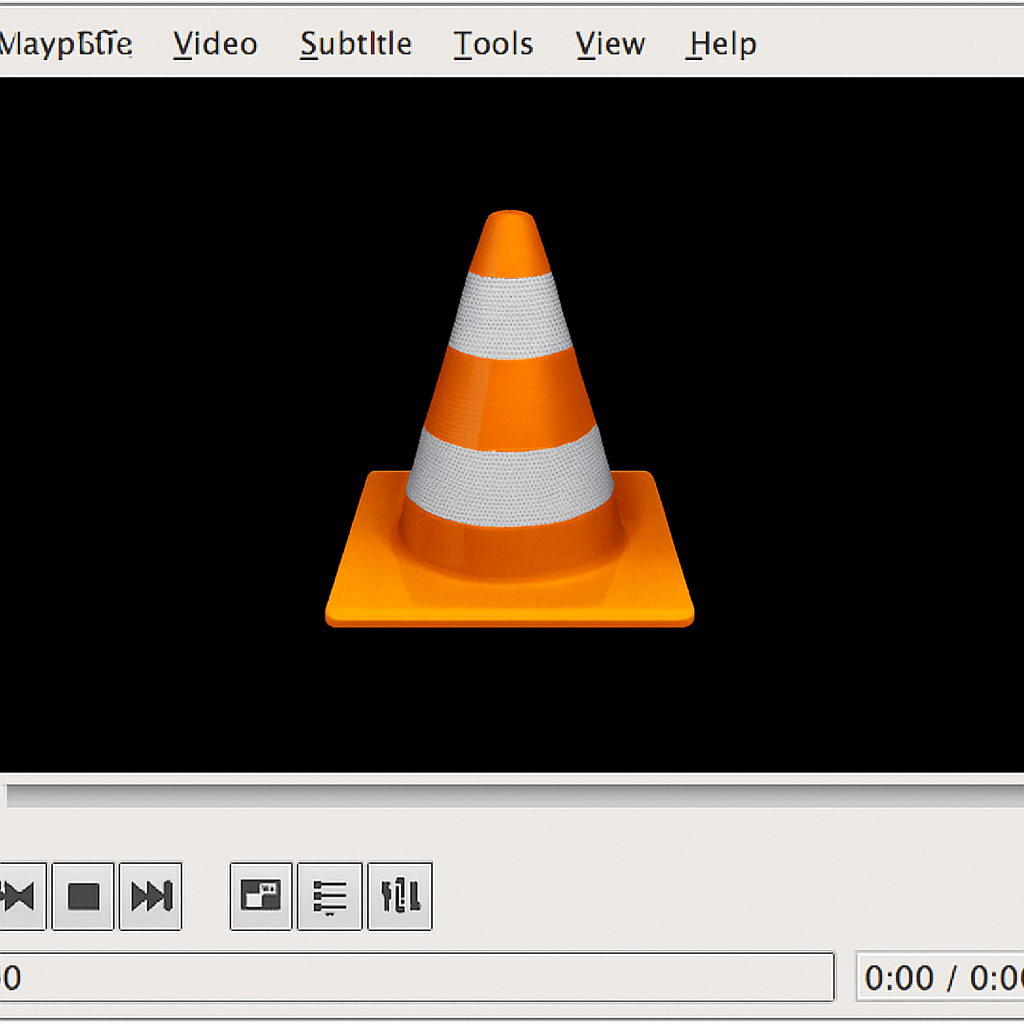
VLC also doesn’t consume many system resources. This makes it perfect for older computers. The software’s reliability is another major asset. It’s stable and produces dependable results. Trimming with VLC is a good option if you need quick, simple edits.
Preparing to Trim Video with VLC: Download, Install, and Set Up
Before trimming your video with VLC, you’ll need the software installed. Fortunately, VLC is available for free on the official website.
Head over to the VLC website and download the version that suits your operating system. The installation process is straightforward. Just follow the on-screen instructions to complete the setup.
Once installed, you’ll need to configure VLC for video trimming. This involves enabling some essential features. Here’s a quick checklist:
- Open VLC Media Player on your device.
- Go to the “View” menu.
- Select “Advanced Controls” to display additional features.
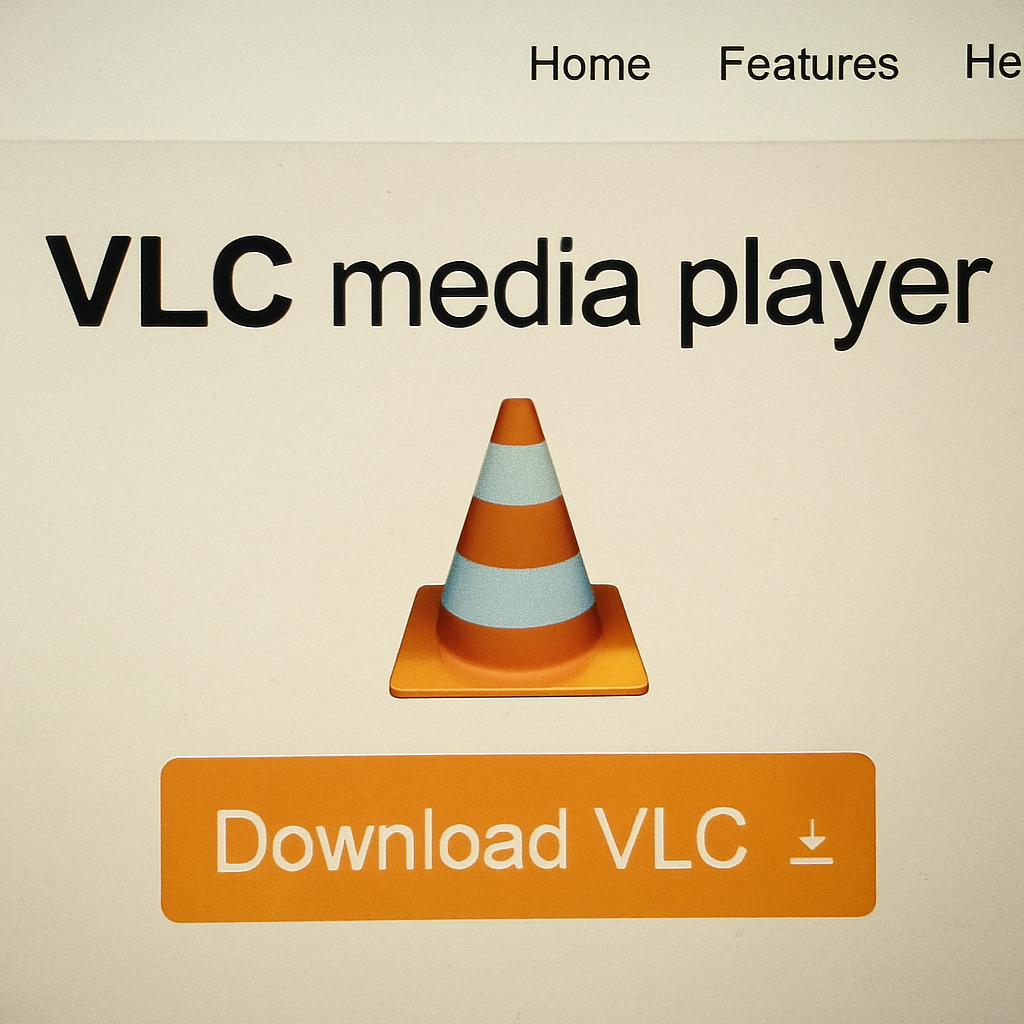
Enabling advanced controls is crucial for trimming videos. This feature allows you to access the Record button. With these tools ready, you’re all set to start the trimming process.
Step-by-Step Guide: How to Trim a Video with VLC
Trimming a video using VLC Media Player is simple and effective. By following a few steps, you can capture and save your desired video segment. We’ll break down the process into easy-to-follow steps.
Step 1: Open Your Video in VLC
To begin trimming, first open your video file in VLC. This step is essential to access the video content you want to edit.
- Launch VLC Media Player.
- Click on “Media” in the top-left corner.
- Select “Open File” and choose your video.

Once your video is loaded, you’re ready for the next step. Ensure the video is correctly loaded and viewable in the player.
Step 2: Enable Advanced Controls
For trimming capabilities, you must enable Advanced Controls. This step is crucial to access the Record feature.
- Navigate to the “View” menu at the top.
- Select “Advanced Controls.”

Now, a new toolbar appears with extra buttons. These controls will help in the trimming process. Familiarize yourself with these tools, especially the Record button.
Step 3: Use the Record Feature to Trim the Video
With Advanced Controls enabled, you can start trimming. The Record button is pivotal in this process.
- Navigate to the starting point of the segment.
- Click the Record button to start recording.
- Press Play and allow the video to play through the desired segment.
- Hit the Record button again to stop.
This method is straightforward for capturing video segments. Here’s what to remember:
- Pause the video for precise start and stop points.
- Use the playback controls to navigate through the video.

By recording, you essentially create a new video file of the segment.
Step 4: Locate and Save Your Trimmed Video
Once recording stops, VLC automatically saves the trimmed clip. Typically, it goes to a default directory.
- Check your Videos or default VLC directory.
- Find the newly created video file.

Rename the video for easy identification. You can then move or copy it to another location if needed. With that, you’ve successfully trimmed a video using VLC.
Tips for Precise Trimming in VLC
Achieving precision in trimming videos with VLC requires a few strategic approaches. To begin, using playback options effectively can greatly enhance trimming accuracy.
Adjusting playback speed is one effective method. By slowing down the video, you can identify exact start and end points. This approach ensures a more precise capture. Furthermore, VLC’s keyboard shortcuts offer another level of control.
Consider using these tips for more accurate trimming:
- Utilize slow-motion playback to identify trimming points.
- Use keyboard shortcuts for efficient control.
- Pause and resume playback for better precision.

Always ensure you have ample disk space for recorded clips. This ensures uninterrupted recording and the best trimming results. Lastly, practice makes perfect in mastering VLC’s trimming features.
Troubleshooting Common Issues When Trimming Video with VLC
Trimming videos with VLC is usually smooth, but some problems can occur. Common issues often stem from configuration errors or hardware limitations. Understanding these can prevent them from disrupting your workflow.
If you encounter errors, consider these common solutions:
- Ensure VLC is updated to the latest version.
- Check your system’s available disk space.
- Try restarting VLC or your device.
If recording fails, verify that the Advanced Controls feature is enabled. Sometimes, playback issues arise due to video codec incompatibility. Adjusting VLC’s settings can often resolve these playback glitches.
Frequently Asked Questions About Trimming Video in VLC
Many people have questions about using VLC for video editing tasks. One common question is about the output format of trimmed videos. VLC keeps the original file format.
Another frequent query involves trimming accuracy. Users often wonder if they can trim videos precisely. VLC allows for precise adjustments using Advanced Controls.
Some also ask if VLC can handle other file types besides video. Fortunately, VLC supports both audio and video trimming. For further clarification, here are some FAQs:
- Can VLC trim videos without losing quality?
- How long can the trimmed video be?
- Are there alternatives to VLC for trimming?
Alternatives to Trimming Video with VLC
While VLC is great, other tools might suit your needs better. Some programs offer more advanced editing features beyond basic trimming.
Here are a few alternatives you might consider:
- Shotcut: A free, open-source editor with robust features.
- Avidemux: Simple and effective for quick video cuts.
- DaVinci Resolve: Offers professional editing capabilities for more complex tasks.
Each of these options brings unique benefits.
Consider trying them to see which best meets your trimming needs.
Final Thoughts: Is VLC the Right Tool for Trimming Videos?
VLC Media Player is a powerful and reliable tool for trimming videos effortlessly. Its simplicity and versatility make it an attractive option for users with basic editing needs.
While it may not offer the extensive features of professional editing software, VLC is a fantastic solution for quick and easy video trims without added cost.